Introduction
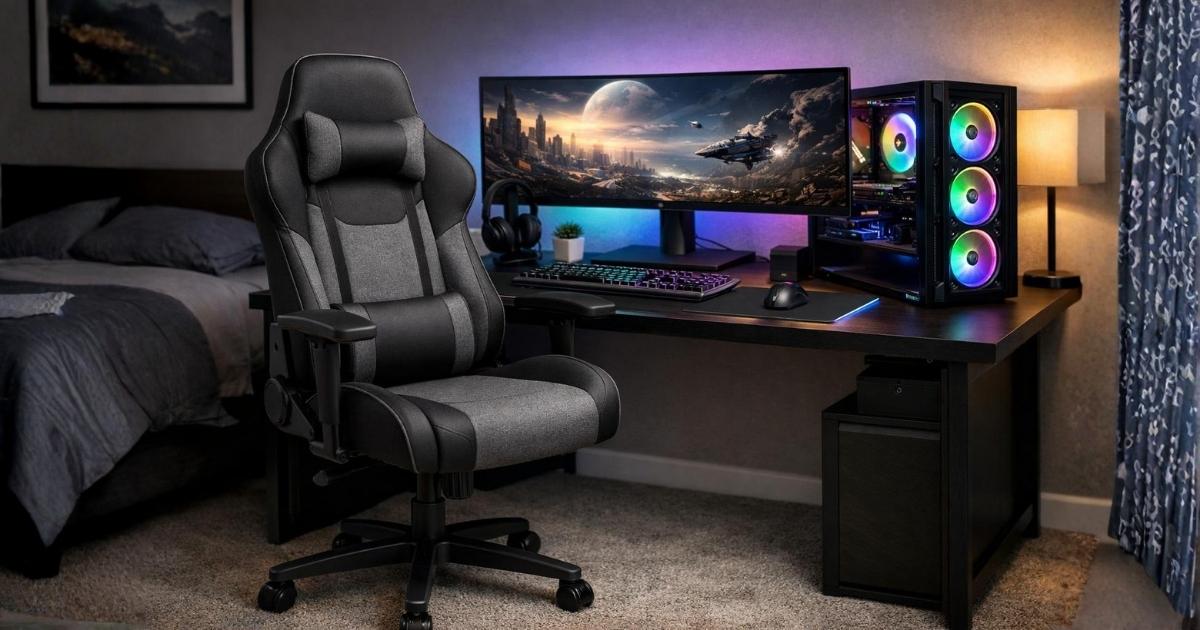
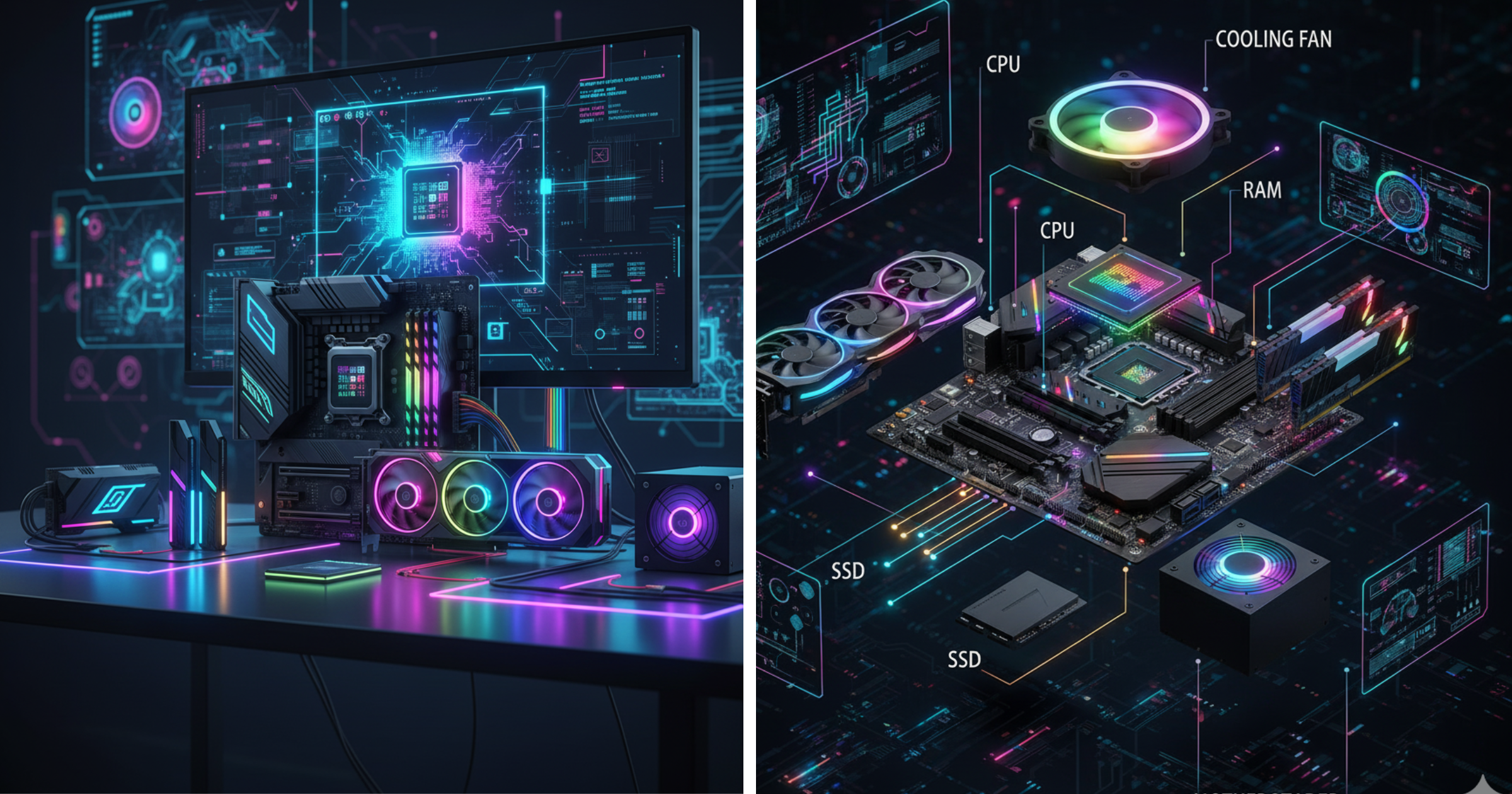
All the components of a PC work together to make your computer fast, powerful, and stable. From a thin laptop to a massive gaming desktop, every computer is made up of essential parts that cooperate to make it function properly.
Whether you want to create your own computer or just know what’s in your PC, having this knowledge provides control over performance, upgrades, and troubleshooting. Let’s take a closer look at every part.
Now, let’s explore all the components of a PC and understand how each part contributes to its performance and stability.
1. The Core Components of a Computer
Central Processing Unit (CPU)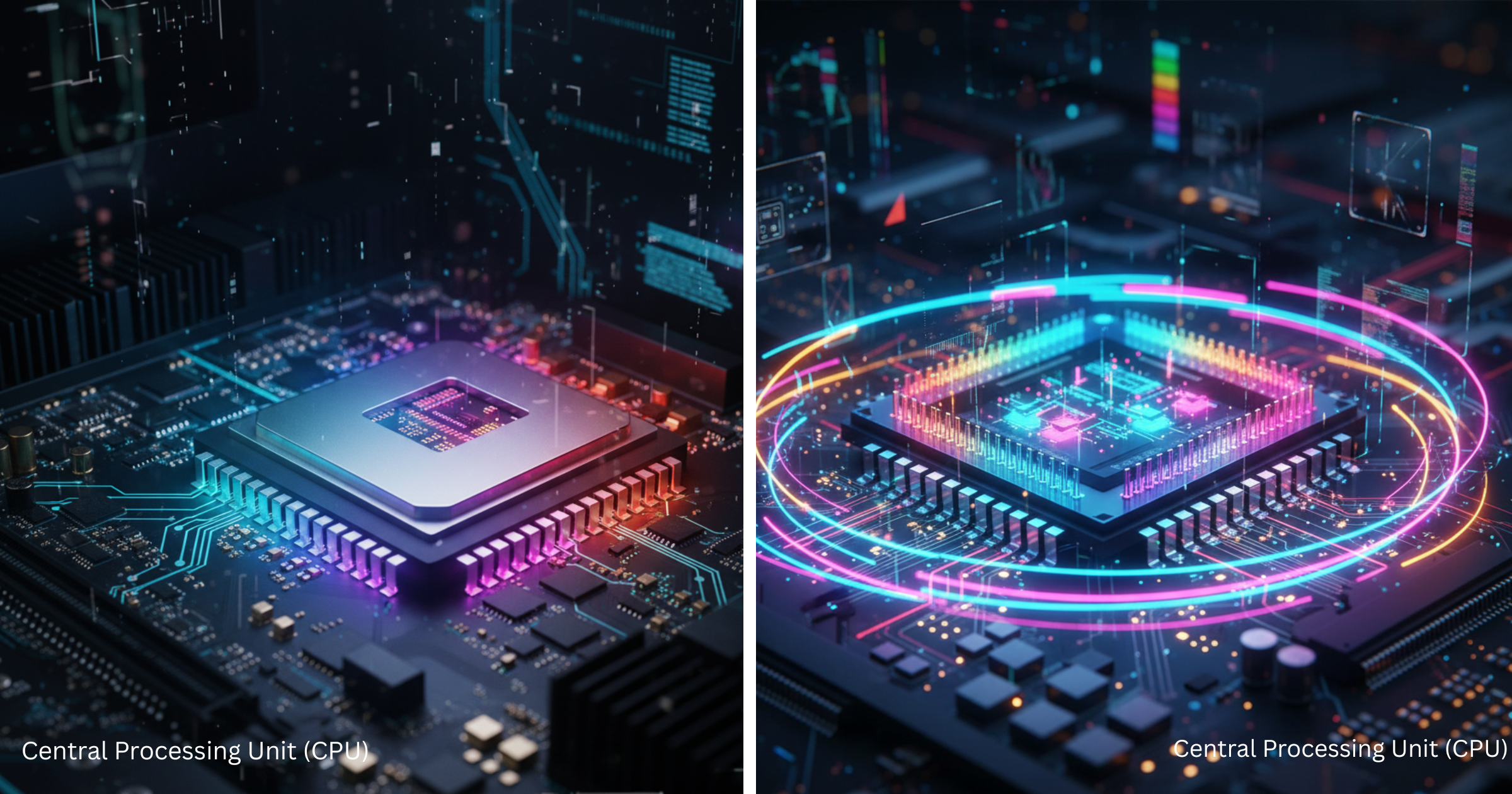
Often called the brain of the computer, the CPU handles all the calculations, instructions, and processes that allow your system to work. It determines how fast your PC thinks and responds.
Modern CPUs from Intel and AMD have multiple cores and threads, allowing multitasking—games, browsers, and applications can all be run simultaneously without slowdown. CPU speed is measured in GHz, but the number of cores and the architecture are as vital as the raw clock speed.
Read more: Best CPUs for Gaming and Productivity in 2025
A CPU needs proper cooling and a motherboard socket compatibility to be able to provide its complete worth.
Motherboard
The motherboard, often referred to as the main circuit board, is the one that connects all the hardware, such as CPU, RAM, GPU, storage, and peripherals. It is responsible for power distribution, data transfer management, and hardware compatibility decisions.
Motherboards are offered in a variety of dimensions (ATX, Micro-ATX, Mini-ITX) and provide PCIe, RAM slots, and connections for USB, audio, and networking. The right choice of motherboard will guarantee your building an environment where there is a perfect match and is almost as good as a stable one.
Besides, it contains the BIOS/UEFI, the firmware which starts your system soft-boot when you turn it on.
RAM (Random Access Memory)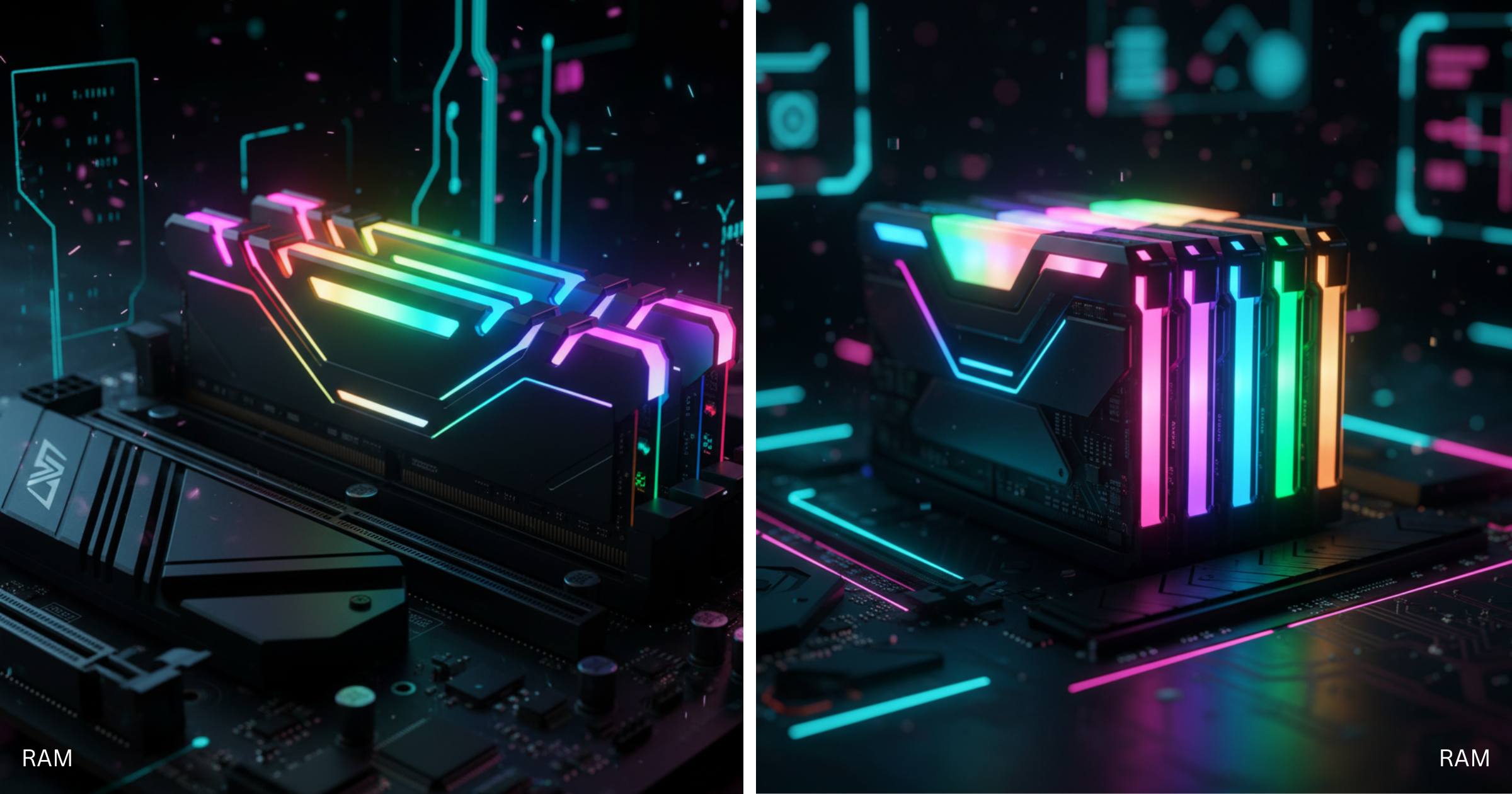
Think of RAM as your computer’s short-term memory. It stores information your system now requires—like open applications and files temporarily.
The more RAM, the better the multitasking and performance. While 8GB is perfectly okay for non-serious users, 16GB or higher is ideal for gaming or professional use. If you’re into content creation, you can also check our guide on Best RAM for Video Editing to choose the perfect memory for smooth editing performance.
RAM speed (MHz) also contributes to performance, especially in newer systems. RAM modules are plugged into the motherboard’s DIMM slots and come in generations like DDR4 and DDR5, each faster and more power-efficient than the last.
Storage: HDD vs SSD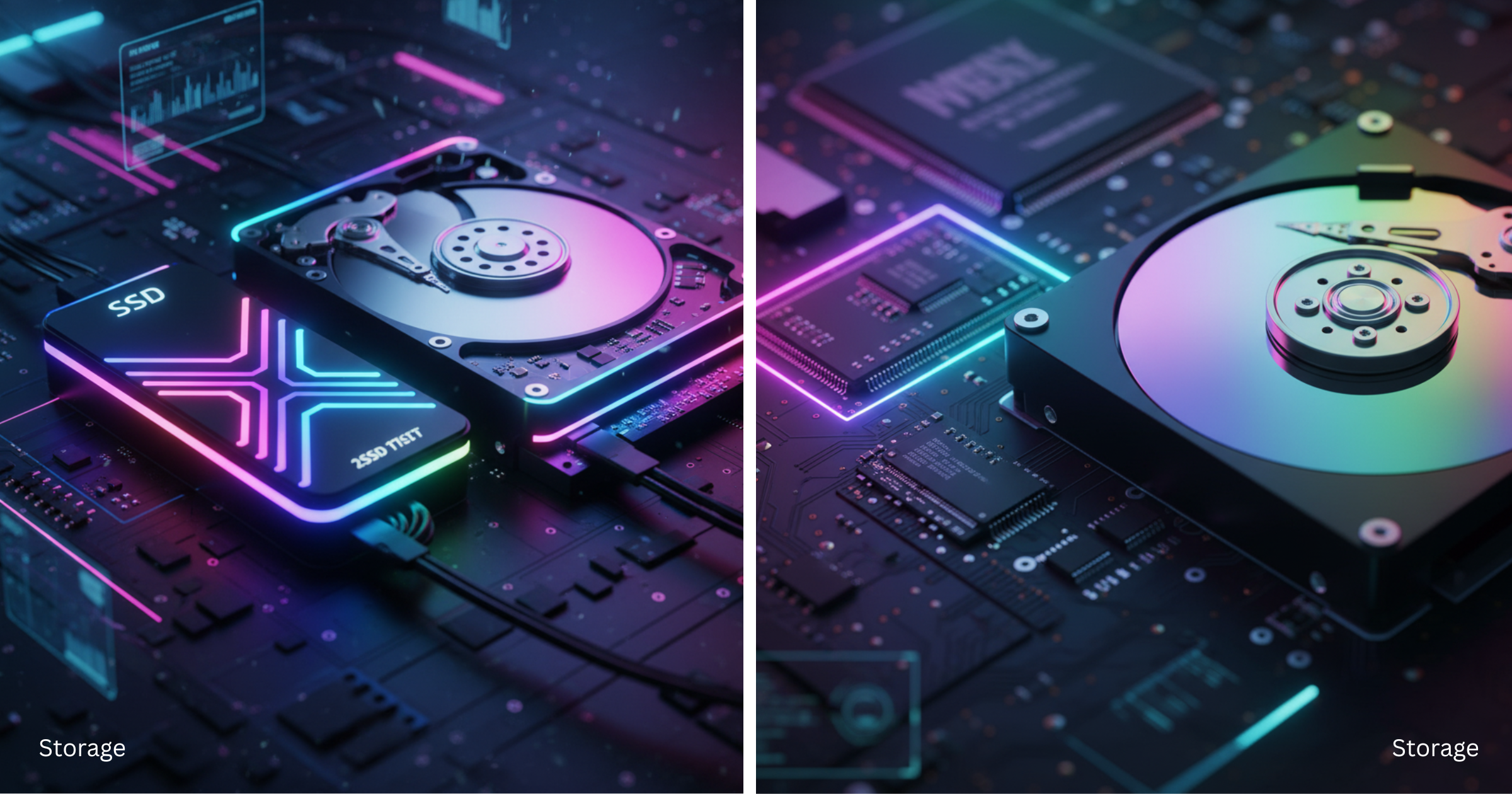
Storage controls how much information your computer can store—and how fast it can retrieve it.
Hard Disk Drives (HDDs) use spinning disks to keep information. They’re cheap and useful for bulk storage, but slow.
Solid-State Drives (SSDs) use flash memory, giving scorching boot times and data access.
The majority of modern PCs use an SSD for the operating system and an HDD for extra space. The disparity in speeds between the two is astronomical—an SSD will have your system feeling brand new .
Power Supply Unit (PSU)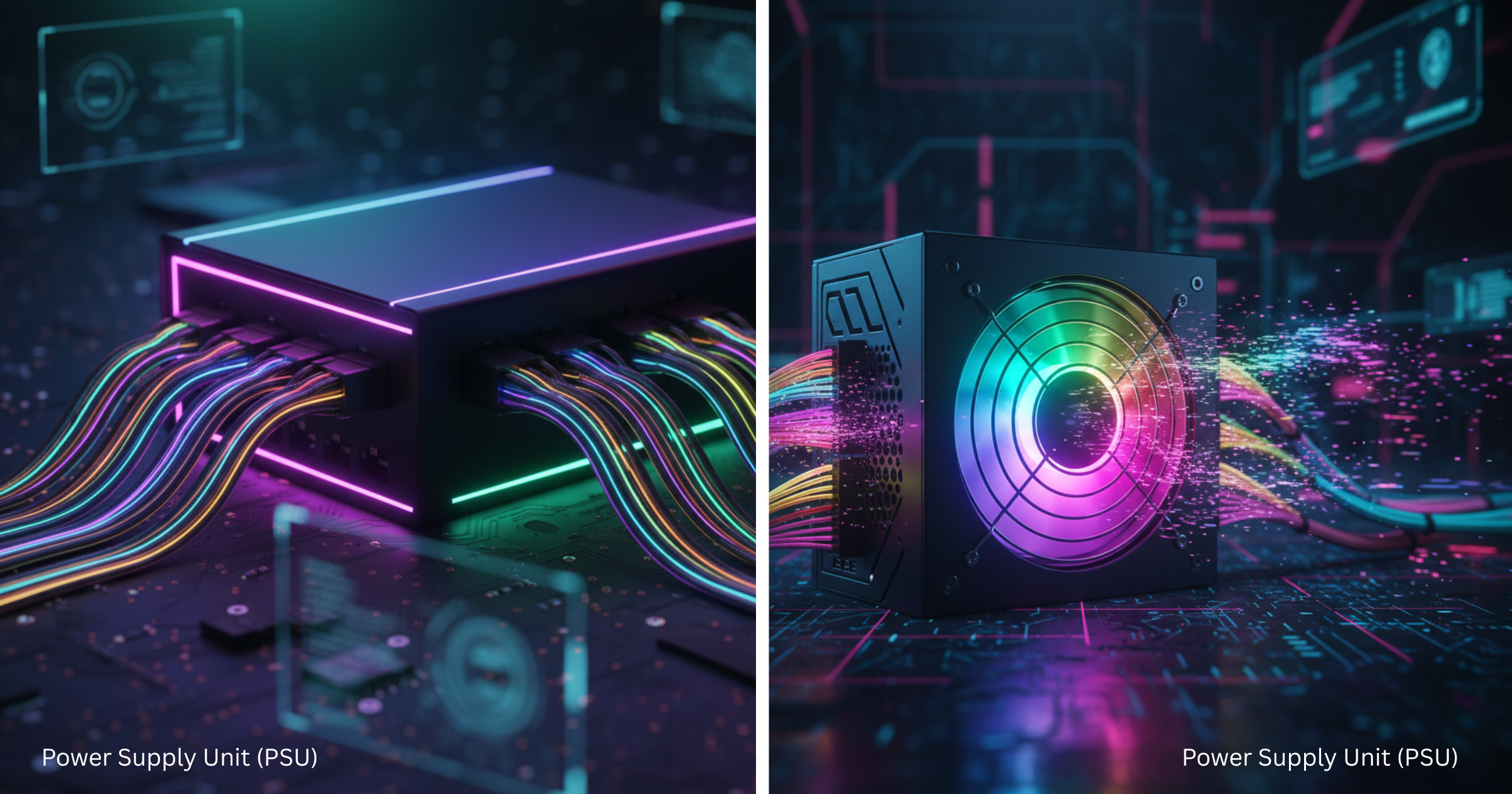
The PSU uses your wall socket’s electricity and transforms it into PC-useable energy safely. It’s the cornerstone of your system stability.
Always go for a good, certified PSU (80 Plus Bronze, Gold, or Platinum). It ensures stable power delivery and surge protection. Underpowered or cheap PSUs result in crashes—or even damage to components.
Make sure the wattage is suitable for your hardware, especially your GPU and CPU requirements.
2. Visual and Cooling Components
Graphics Processing Unit (GPU)
The GPU, or graphics card, handles visual output—rendering images, videos, and games. While CPUs can handle basic graphics, GPUs are required for gaming, 3D rendering, and content creation.
Discrete GPUs (NVIDIA’s GeForce and AMD’s Radeon) possess their own VRAM that is utilized to render high-resolution textures and effects. Integrated GPUs, built into CPUs, are best suited for general users.
A good GPU can greatly enhance gaming performance and graphics, but it also needs proper cooling and enough PSU power.
Cooling System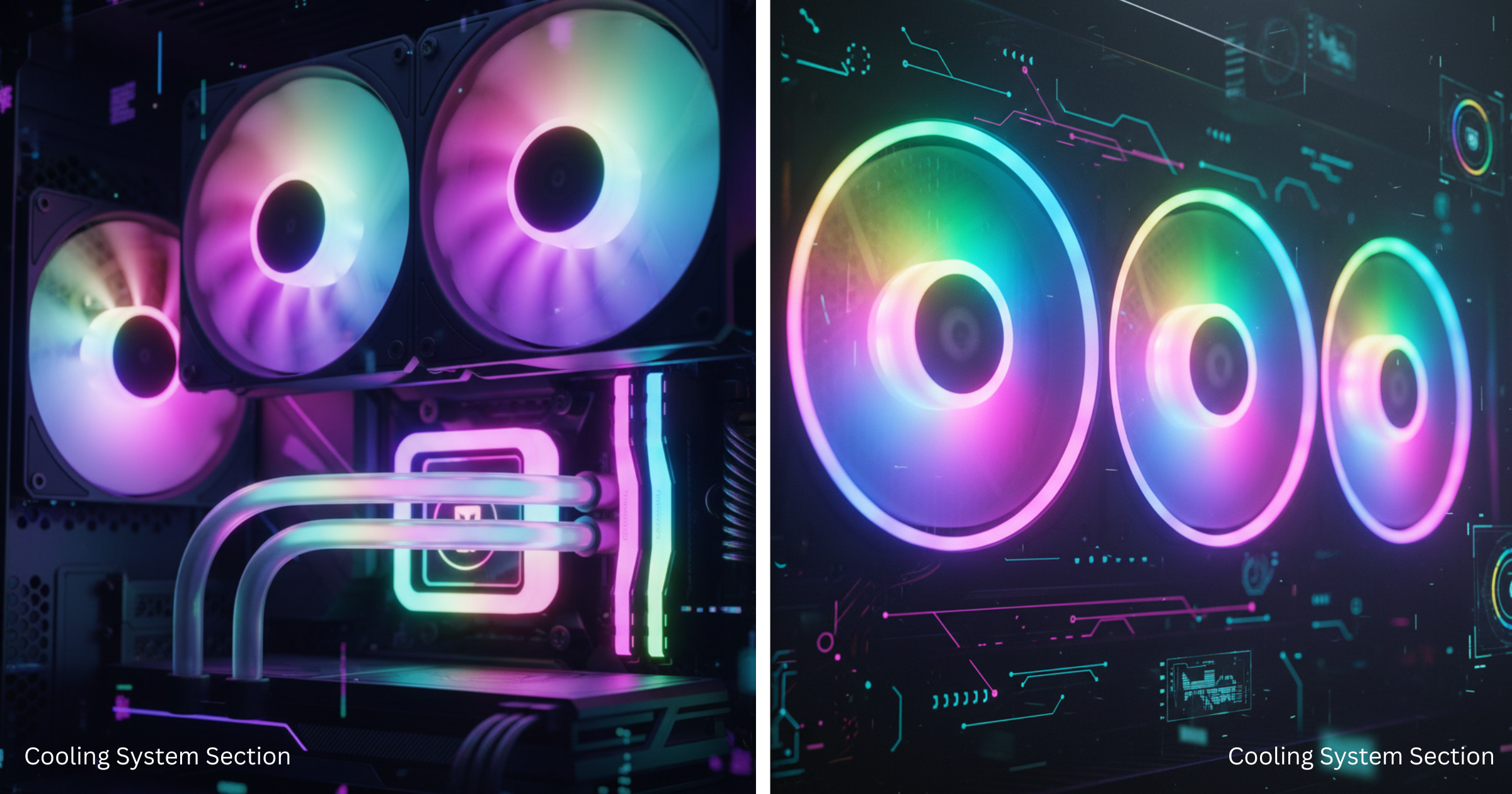
Heat is the quiet enemy of all PCs. The cooling system—heat sinks, fans, and the odd liquid cooling—keeps your components safe and efficient.
There are two main types:
Air cooling: cheap, reliable, and simple to maintain.
Liquid cooling: quieter, more effective, especially for high-end CPUs and GPUs.
Good airflow in your case is essential. Intake and exhaust fans ensure that hot air is removed from the system, maintaining optimal temperatures for performance and lifespan.
3. Input and Output Components
Monitor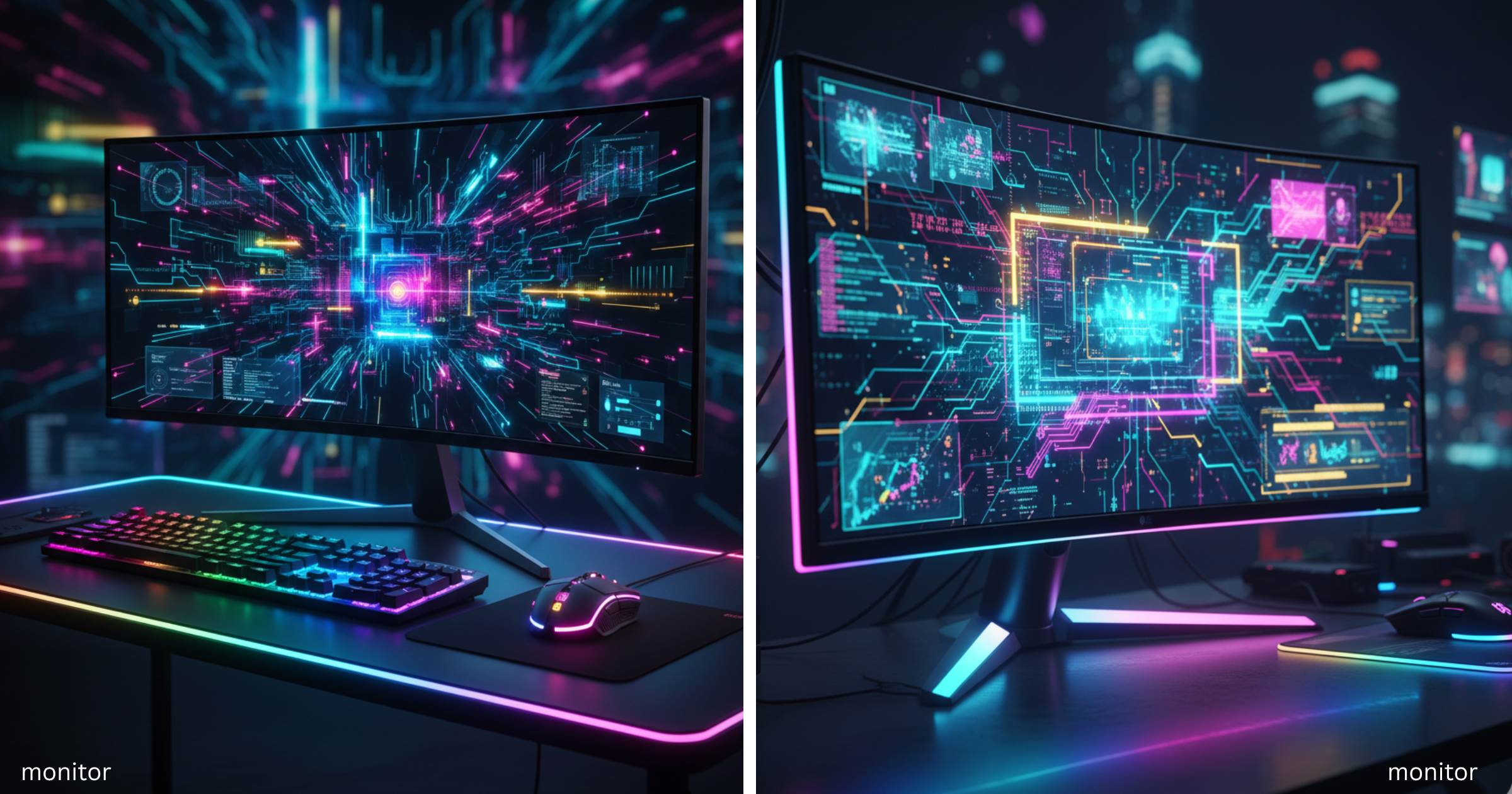
The monitor displays everything your GPU renders. The right display can transform your computing experience.
Important specs to consider:
Resolution: 1080p, 1440p, or 4K for sharper visuals.
Refresh rate: 60Hz for standard use, 144Hz or higher for gaming.
Panel type: IPS for color accuracy, TN for speed, VA for contrast.
A good monitor balances clarity, color, and responsiveness, depending on whether you’re gaming, editing, or working.
Keyboard and Mouse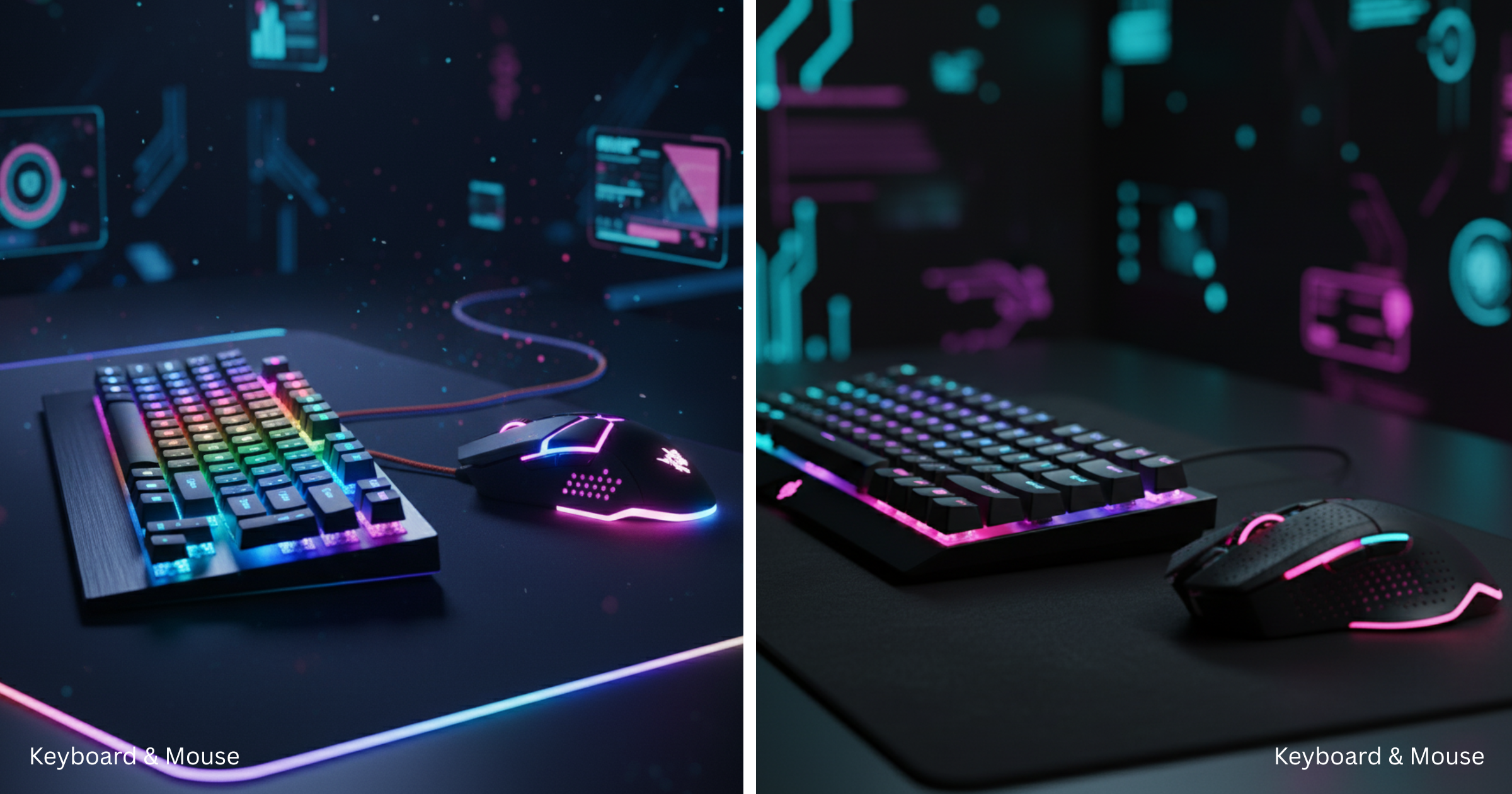
The mouse and keyboard are your main interface to tell your PC what to do.
Keyboards come in membrane or mechanical models—the latter offering tactile feedback and durability. Mice, meanwhile, range from simple optical models to high-DPI gaming variants with programmable buttons.
For productivity, ergonomics and comfort matter the most; for gaming, customization and responsiveness matter the most. Wireless options also maintain a clutter-free setup.
Speakers and Headphones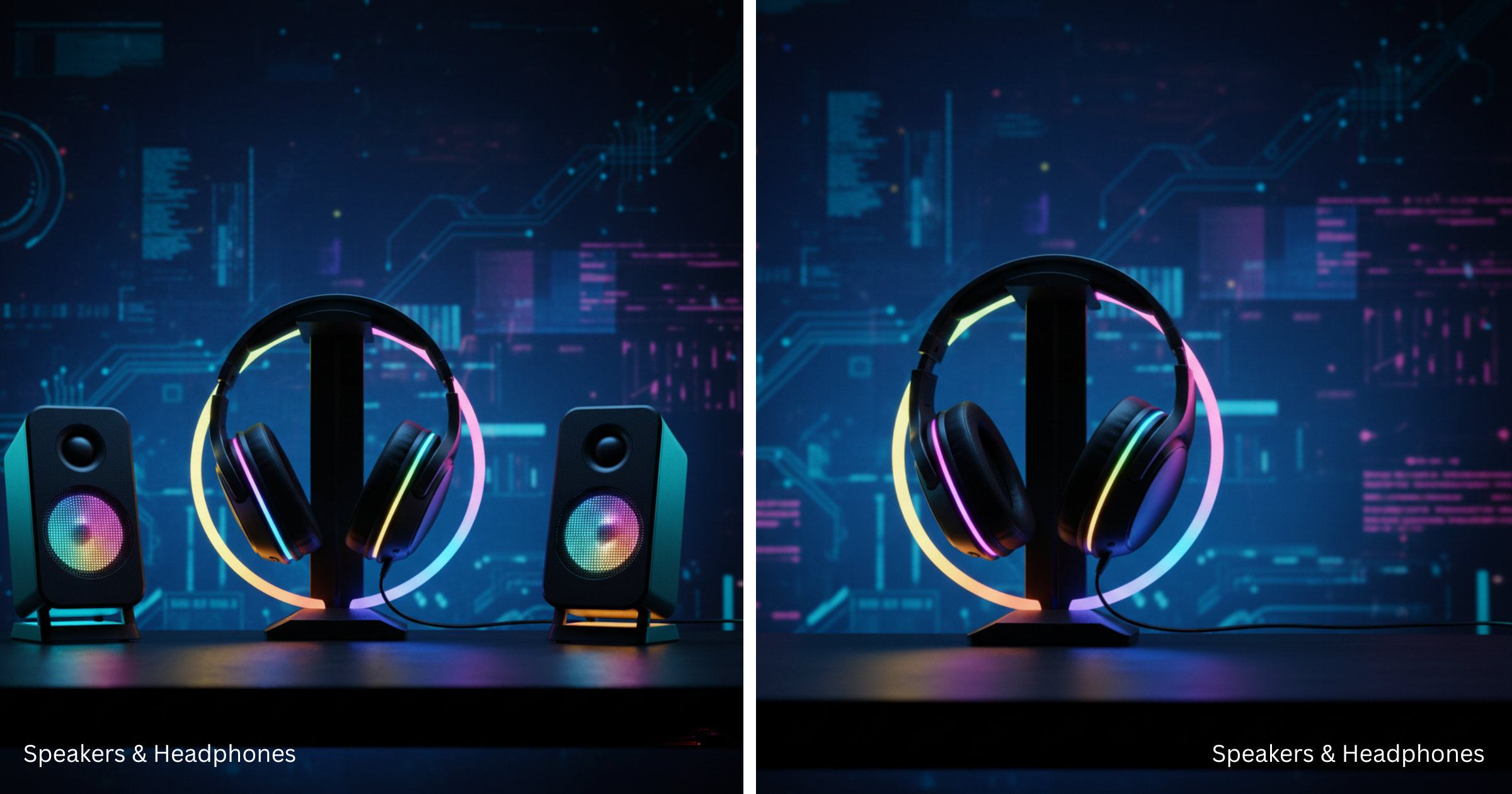
Sound is typically underemphasized but is necessary for immersion. Speakers provide decent sound for entertainment, while headsets supply focused sound and communication for work or gaming.
Audiophiles can improve sound clarity with special sound cards or DACs. A basic speaker system even makes the overall experience better than the internal speakers of a laptop.
4. Additional and Software Components
Network Components
Internet connection is dependent on Wi-Fi cards, Ethernet ports, or Bluetooth adapters.
For the fastest and most consistent connection, Ethernet is utilized, but Wi-Fi 6 and Wi-Fi 7 technologies are also available for high-speed wireless connections. Bluetooth enables you to connect peripherals like wireless mice or headphones.
Case (Chassis)
The casing of the PC houses everything and affects appearance and cooling.
Cases come in various sizes (Full Tower, Mid Tower, Mini Tower). A larger case accommodates more upgrades and maximum airflow, but occupies more space.
Modern designs include tempered glass panels, RGB lights, and incredible cable management—demonstrating that good design is not only practical but also visually appealing.
BIOS/UEFI and Operating System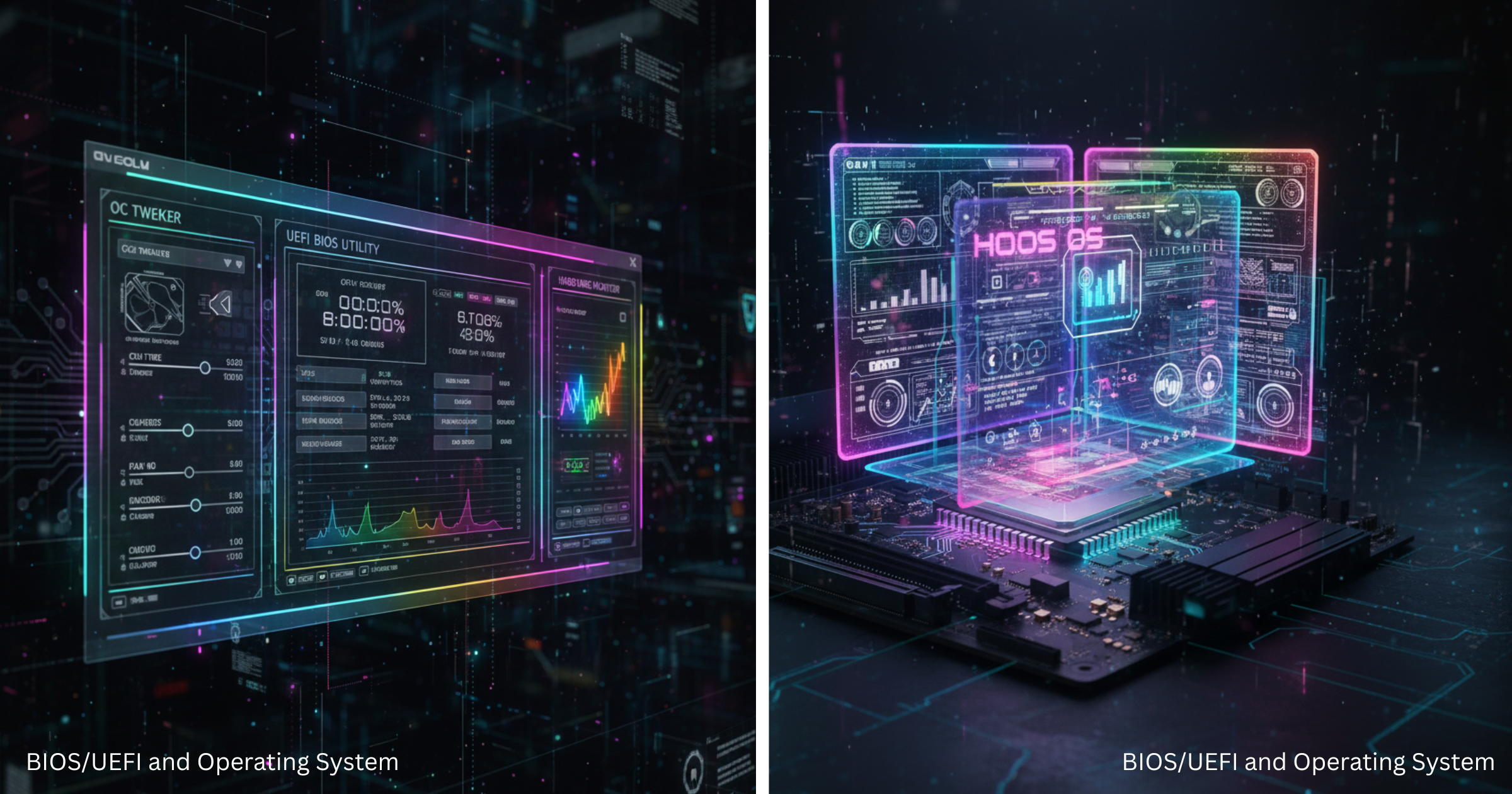
Prior to when the OS loads, the BIOS/UEFI verifies that all hardware functions properly. It also allows you to make adjustments such as boot priority, fan speed, and overclocking.
Then there is the Operating System (OS)—Windows, macOS, or Linux. The OS is what you interact with on a daily basis. It manages your hardware, executes your software, and keeps everything in order.
BIOS/UEFI and the operating system together create the electronic framework of your device’s operations.
5. How Everything Works Together
Each component of a PC serves a purpose, but they all rely on each other. When you open something, the CPU decodes it, RAM temporarily stores it, the GPU renders it, and the storage keeps it safe for possible future use—all powered by the PSU and orchestrated by the motherboard.
If one component fails, the entire system can slow down or stop working. That’s why balance is key: a fast GPU is useless with a weak CPU, and high-speed RAM doesn’t help if your storage is sluggish.
6. Choosing,Maintaining&Upgrading Components
Building the Right PC
Your ideal setup depends on how you’ll use your computer:Gamers need powerful GPUs, high-performance CPUs, and effective cooling solutions.Office computers emphasize stability, multitasking, and silent operation.Artistic computers (for video editing, design, etc.) need top-of-the-line GPUs, high RAM, and color-critical monitors.Always build in equilibrium—never overemphasize one at the cost of the other.
👉 For detailed guidance, check out our article on Best Components to Build a Gaming PC.
Maintenance and Upgrades
Keeping your PC up to date and clean keeps it alive.Clean fans and dust filters regularly.
Update drivers and OS to provide peak performance.Upgrade intelligently—RAM, storage, or GPU upgrades will dramatically improve speed.Simple habits like cable tying and airflow maintenance prevent overheating and maintain your system in pristine working order for years.
Conclusion
Understanding all the components of a PC helps you see how every part—from the CPU and RAM to the GPU and storage—works together to make your system powerful and efficient.
Knowing what each part does gives you the freedom to upgrade, troubleshoot, and optimize your setup for gaming, editing, or everyday use. Whether you build your own computer or just want to make your current one faster, this knowledge keeps you in full control of your PC’s performance.
FAQs
1. What are the most important PC components?
The CPU, motherboard, GPU, RAM, storage, and PSU are the most essential parts of any computer.
2. Is building a PC cheaper than buying one?
Usually yes—building allows customization and better value for your budget.
3. How much RAM do I need?
8GB is enough for basic use, 16GB for gaming, and 32GB+ for heavy creative or multitasking workloads.
4. Do I need liquid cooling?
Not always. Air cooling is sufficient for most systems, but liquid cooling helps high-performance builds stay quiet and cool.
5. How often should I clean my PC?
Every 3–6 months to prevent dust buildup and overheating.